Add Image to PDF - Insert Photo into PDF Free
Drop a PDF, add your images, then click anywhere on a page to place them. Resize, rotate, set opacity, and copy to every page. Free, no signup, browser-based.
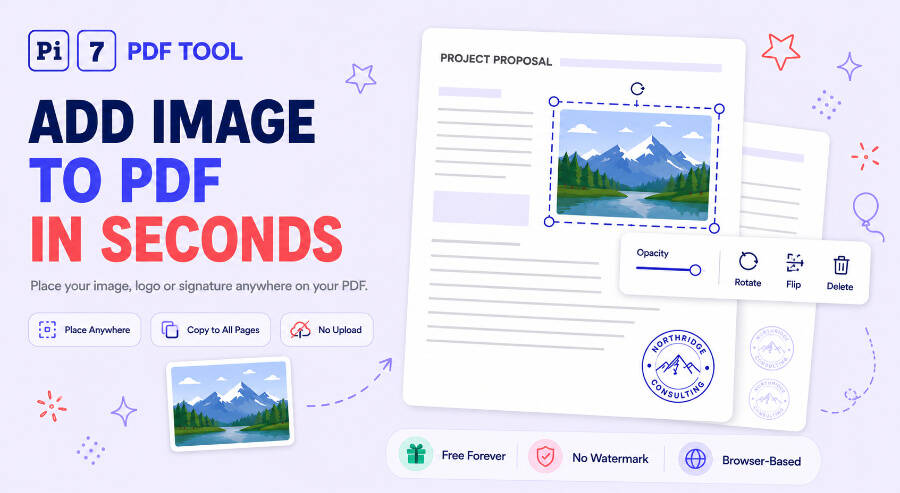
To add a picture to a PDF: drop your file above, click + Insert Image on Page, pick a JPG or PNG, then click the exact spot on the page where you want it. Pi7 places the picture instantly - drag to move it, pull the corner to resize it, and click Download. The whole thing takes about 20 seconds, runs entirely in your browser, and needs no signup and adds no watermark.
You can insert up to 20 different pictures in one session (25 MB each) into a PDF as large as 70 MB, repeat a logo across 100 pages in one click, and even attach a photo as a brand-new page between two existing pages. Every option below works on desktop and mobile.
How to Insert a Picture in a PDF (Step by Step)
Five steps, nothing to install:
- Open your PDF : Drag and drop it, or tap the upload box on your phone. Every page renders in the editor with thumbnails on the left for quick jumps.
- Add your pictures : Click + Insert Image on Page and select one or more image files. Each one lands in the tray at the top. You can also drag image files straight into the editor.
- Click where you want it : A live preview of the actual picture follows your cursor over the page. One click drops it on that exact spot - no hunting for a floating box that appeared somewhere else.
- Fine-tune : Drag to move (it snaps to the page center), pull the corner to resize, pull the top handle to rotate. Select the picture to open the options bar with opacity, flip, duplicate, and copy-to-pages.
- Download : Click Insert Images & Download. Pi7 writes every picture into the PDF right in your browser and saves the file with no watermark.
On the Page or As a New Page: Two Ways to Add a Picture
Most tools only let you overlay a picture on an existing page. Pi7 gives you both options in one editor, because they solve different problems:
- Insert on a page : The picture sits on top of the existing content. This is what you want for a passport photo in a form box, a logo in a letterhead, a stamp over an invoice, or a photo dropped into a report.
- Insert as a page : Click any + button between two page thumbnails (or the + Insert image as page pill between the pages themselves) and the picture becomes a full new page at that exact position. The new page automatically copies the size of its neighbor, so an A4 document stays uniformly A4. Use this to attach receipts, certificates, ID scans, or photo evidence to an existing document.
If you need to combine a whole folder of photos and PDFs into one file instead, our merge PDF and JPEG tool is built exactly for that.
Position It Perfectly: Snap, Nudge, Rotate, Opacity
Getting a picture onto the page is easy; getting it into exactly the right spot is what usually wastes time. Pi7 gives you the same placement aids you would expect from a desktop design app:
- Center snap : While dragging, red guide lines appear when the picture reaches the horizontal or vertical center of the page, and it snaps gently into place.
- Pixel nudge : Arrow keys move the selected picture 1 pixel at a time; hold Shift for 10-pixel jumps. Perfect for landing a photo inside a printed form box.
- Rotation : Pull the top handle to rotate to any angle. Hold Shift to snap in 15-degree steps, double-click the handle to reset to straight.
- Opacity from 10% to 100% : Fade a picture to use it like a stamp or a light background mark.
- Flip and duplicate : Mirror the picture horizontally or vertically, or press Ctrl+D to duplicate it on the same page.
- Copy to pages : Place a logo once, then copy it to all pages, odd pages, even pages, or a custom range like 2-5, 8. Odd/even matters for double-sided letterheads where the logo alternates corners.
The aspect ratio stays locked while resizing, so your photo can never end up stretched or squashed - the number one complaint people have after they insert a picture in a PDF with other tools.
Which Picture Formats Can You Insert?
Pi7 accepts JPG, PNG, WebP, GIF, and BMP. JPG and PNG are embedded exactly as they are. WebP, GIF, and BMP are converted to lossless PNG automatically, so nothing is compressed or degraded on the way in. Transparent PNGs keep their transparency - a logo or signature image with a see-through background stays see-through on the page instead of arriving inside a white box. iPhone photos saved as HEIC need a quick conversion to JPG first (iOS does this automatically when you choose the photo in most browsers).
Does Adding a Picture Reduce PDF Quality?
No - and this is worth understanding, because tools handle it very differently. Some free tools flatten every page into a screenshot to add an image, which makes text blurry and unselectable. Pi7 never re-renders your pages: it writes your original picture bytes into the existing PDF structure. Your text stays selectable, vector graphics stay sharp, and a 300 DPI photo goes in at 300 DPI. The file size grows only by roughly the size of the inserted images. If the result gets too heavy to email, run it through our PDF compressor afterward.
Common Reasons People Add Pictures to PDF Documents
- Passport photo on an application form : The nudge keys and locked aspect ratio make it easy to fit the photo exactly inside the printed box.
- Company logo on every page : Place once, copy to all pages, done - the classic letterhead job.
- Stamps and seals : Drop a PAID, APPROVED, or RECEIVED stamp at 60-80% opacity so the text underneath stays readable.
- Signature image : You can insert a photo of your signature here, but our dedicated PDF signing tool also removes the paper background and can add date and text fields.
- Product photos in quotes and catalogs : Insert pictures next to line items without rebuilding the document.
- Photo evidence and receipts : Attach each photo as a new page at the end of the report using the + buttons.
No Upload: Your Photos and PDF Never Leave Your Device
Pi7 does not upload your PDF or your pictures. We never see them and never store them. The editor reads your files locally with JavaScript, you place the images on your own screen, and your browser writes the final PDF and saves it straight to your device. Nothing crosses the network at any point.
That design has three practical benefits: it is fast (no upload wait, even for a 70 MB file), it is private (contracts, ID scans, and personal photos stay yours), and it is unlimited (no daily quota, because there is no server doing the work). It is also why the tool needs no account - there is nothing to meter.
Frequently Asked Questions
How do I add an image to a PDF on my phone?
Open this page in your phone browser, select your PDF, tap + Insert Image on Page, and choose a photo from your gallery or take one with the camera. Tap the page where you want it, drag and pinch to position it, then tap Download. It works the same on Android and iPhone, with no app install.
Can I paste a picture into a PDF?
Not directly - PDF viewers almost never accept a pasted image, which is why Ctrl+V seems to do nothing. The dependable route is to save the picture as a JPG or PNG file, add it to the Pi7 tray, and click the page to place it exactly where you wanted to paste it.
How do I attach a picture to a PDF as its own page?
Use the + buttons that appear between the page thumbnails, or the Insert image as page pill between the pages. Pick your picture and it becomes a full page at that position, sized to match the rest of the document. You can attach several photos at once and they are inserted in order.
Ready to add a picture to your PDF? Drop your file above, place your images, and download the finished document in seconds.