Amazon Label Cropper - Crop Labels to 4x6 Online
Drop your Seller Central PDF, get 4x6 labels with the invoice pages removed.
Analysing pages
 Thermal Printer
 A4
A4 Sheet
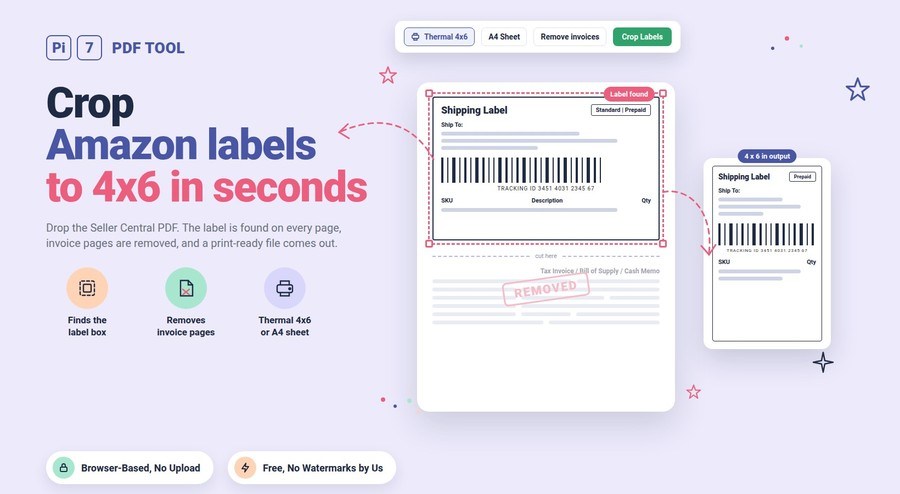
Crop Amazon shipping labels to 4x6 online for free with the Pi7 Amazon Label Cropper. Upload the label PDF from Seller Central. The tool finds the label box on every page and drops the tax invoice pages. It then builds a new PDF sized for your thermal printer or an A4 sheet. Nothing is uploaded, so your customer addresses stay on your device.
Amazon India gives Easy Ship and Self Ship sellers one A4 page per label. The shipping label sits in the top half, and a full tax invoice page follows it. Send that file straight to a 4x6 roll and the printer shrinks the whole A4 page. The barcode then comes out too small to scan at pickup. Cropping fixes it. Doing that by hand for 80 orders a day does not scale, which is why we built this.
How to Crop Amazon Shipping Labels to 4x6
- Download the labels: In Seller Central open Manage Orders, pick your Easy Ship or Self Ship orders, and print the shipping labels. Save the PDF.
- Select the PDF: Drop it on the box above. You can drop several PDFs at once and they are joined into one job.
- Check the box: The page preview shows a box around the label the tool found. Drag a corner if you want a tighter or wider crop. The same box is then used on every label page, and "Reset box to auto" brings the detected box back.
- Pick your printer: "Thermal Printer" gives one 4 x 6 inch page per label. "A4 Sheet" puts 2, 4, 6 or 8 labels on one sheet.
- Choose what happens to invoices: "Remove" keeps labels only. "Keep as a separate PDF" gives you a second file with every invoice at A4. "Invoices only" skips the labels.
- Click "Crop Labels": The labels PDF downloads right away. If you kept the invoices, a "Download Invoices PDF" button appears under it.
Print the labels file at 100% scale or "Actual size", never "Fit to page". Each page is already exactly 4 x 6 inches, so the printer has nothing to resize.
Which Amazon Label PDFs Does It Work With?
- Label and invoice on alternate pages: The common Easy Ship download. Page 1 is the label, page 2 is the Tax Invoice, and so on. The tool reads the text on each page. A page that says "Tax Invoice", "Bill of Supply" or "Cash Memo" at the top is treated as an invoice. It is never cropped as a label.
- Label on top, invoice below: Some downloads put both on one A4 page with a "cut here" line between them. The tool crops the label above the line and still lets you keep the lower half as an invoice page.
- 2-in-1 and 4-in-1 sheets: Batch downloads with two or four labels on one page are split into single labels. The tool detects this from the order IDs on the page, and you can force it with the "Labels per page in your PDF" option.
- Already 4x6 labels: If you printed with the thermal option in Seller Central, each page is placed on a fresh 4x6 page as it is. You can still use the invoice split or the A4 sheet layout.
- Several files at once: Select or drop all of today's PDFs together. They are joined in the order you picked them and come out as one labels file.
FBA box labels and FNSKU product barcodes are a different kind of file, but the crop box still works on them. Draw the box around one label and every page gets the same crop. If you also sell on other marketplaces, the Meesho label cropper and the Flipkart label cropper give you the same thermal and A4 output.
What Happens to the Tax Invoice Pages?
Amazon generates the invoice with every Easy Ship order because GST rules in India require one. Seller Central has no setting to turn it off. You need the label on the outside of the parcel and the invoice inside it, and they usually go to different printers. The cropper keeps them apart:
- Remove: Only labels come out. Pick this when your packing software already prints invoices.
- Keep as a separate PDF: You get two downloads. The labels file goes to the thermal printer. The invoices file stays at A4 and goes to your normal printer. Both files are in the same order, so the first invoice belongs to the first label.
- Invoices only: Handy when you already printed the labels and only need the invoice stack.
Invoice pages are copied out of your PDF as they are, so the text stays searchable and nothing is turned into an image.
Thermal 4x6 or A4 Sheet: Which Output Should You Pick?
Use the thermal option if you own a label printer. Each label becomes its own page of exactly 288 x 432 points, which is 4 x 6 inches (72 points make one inch). The label is scaled to fill the page with a small margin. A wide label is turned by 90 degrees so it uses the full roll width.
| Thermal size | Page in points | Typical use |
|---|---|---|
| 4 x 6 in | 288 x 432 | Standard courier roll, default |
| 4 x 8 in | 288 x 576 | Longer labels with product lists |
| 3 x 5 in | 216 x 360 | Smaller 3-inch printers |
| 4 x 4 in | 288 x 288 | Square rolls |
| Same as the crop box | Varies | Keep the label at its original size |
Use the A4 option if you print on plain or sticker A4 paper and cut the labels out. With 4 labels per sheet each label stays close to its real size. With 2 per sheet the labels are enlarged to fill the page. The tool turns a label on its side whenever that gives a bigger print. The output is a normal A4 PDF, so it also works with the pages per sheet tool if you want a different grid later.
Sort Labels by SKU for Faster Packing
Tick "Sort labels by SKU" and labels for the same product come out together. You pick one product once and pack the whole stack. The SKU is read from the invoice page, where Amazon prints the ASIN followed by your seller SKU in brackets. Orders where no SKU could be read keep their original order and go to the end. The invoice PDF is sorted the same way, so the two stacks still match. The status line above the options tells you on how many orders a SKU was found before you crop.
Your Amazon Labels Never Leave Your Browser
Nothing is uploaded. The PDF is opened by JavaScript inside your tab, the label boxes are found there, and the new file is built there too. Customer names, phone numbers and addresses are never sent to Pi7 or to anyone else. There is no copy to delete later because no copy was ever made. Close the tab and the file is gone from memory.
This also means there is no file size cap and no daily limit. A 400-page batch takes longer to analyse on a phone than on a laptop, but it works. The crop keeps the label as vector artwork. That means lines and text are stored as shapes rather than pixels, so barcodes print as sharp as the original.
Frequently Asked Questions
Why does my Amazon label print tiny on a 4x6 printer?
The file you downloaded is an A4 page, and the printer driver shrinks the whole page onto the 4 x 6 roll. The label ends up about half size and the barcode will not scan. Crop the label to a 4 x 6 page with this tool first, then print at 100% scale.
Does cropping change the barcode?
No. The label is cut out of the original PDF as vector artwork and placed on the new page. Lines, text and barcodes keep their original sharpness, so the output prints cleanly even on a basic thermal printer.
Can I crop labels from more than one PDF at once?
Yes. Select all the PDFs together, or drop them on the page at the same time. They are joined in that order and you get one labels file and, if you chose it, one invoices file.
What if the tool picks the wrong area?
Drag the box on the preview to the right spot. Your box is then used on every label page of the file. Invoice pages are never cropped. If a 2-in-1 sheet was read as a single label, switch the "Labels per page in your PDF" option.
Does it work on a phone?
Yes. Open the page in Chrome or Safari on Android or iPhone and select the PDF from your downloads. The cropped file saves to your phone. Large batches take a little longer on a phone because the pages are analysed on the device.
Ready to print? Drop your Seller Central PDF above, check the box on the first label, and click "Crop Labels".