Excel to PDF Converter - Fit All Columns on 1 Page
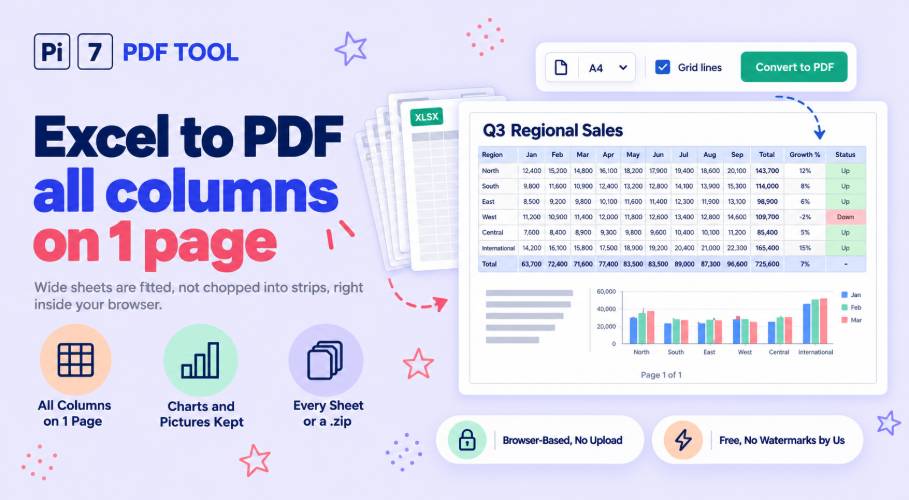
Drop an Excel file above and get a PDF with every column on the page - made right here in your browser. Pi7 draws each sheet itself, so charts, pictures, colours and merged cells come through, and a wide table is fitted on one page wide instead of being chopped across six. You see the pages and the page count before you download, and the file never leaves your device.
How to Convert Excel to PDF Online
- Drop your .xlsx file anywhere on this page, or click Select File to pick it.
- Look at the preview. Every sheet is already fitted on one page wide. Change the direction, paper size or sheets if you want.
- Click Convert to PDF. The pages are drawn on your own device in a few seconds.
- Click Download PDF on the result card. Rename it first if you like.
The pill under the preview shows what changed. A sheet that would have been 13 pages in Excel's own export often turns into 1 page here, and you can see that number before you convert.
Why Do Columns Get Cut Off When Excel Saves a PDF?
Excel prints a sheet in strips. When the columns are wider than one page, the ones on the right are pushed onto the next page, and a table with 20 columns comes out as 6 pages with 8 columns on the first. Every online converter we tried does the same, because they hand the file to a program that prints it the way Excel does.
This tool fits the columns instead, and you do not have to set anything. It shrinks the sheet sideways only, just enough to get all the columns on one page, and then lets the rows run down as many pages as they need. We measured it on a real salary sheet with 11 columns: 3 pages with the normal export, 1 page here. If your file already has a print setup saved in Excel, the tool follows that instead and changes nothing.
Landscape or Portrait, and Which Paper Size?
On Auto, each sheet picks its own direction: a wide sheet goes sideways (landscape), a tall one stays upright (portrait). If you already set the direction inside Excel, the tool keeps your choice. You can force one direction for every sheet from the list.
The paper size works the same way. Same as file keeps what the file says, A4 is the default for a file that says nothing, and Letter, Legal and A3 are one click away. Letter is a little wider and shorter than A4, which is why a file from the US can look odd on an A4 printer.
A PDF page does not have to be a sheet of paper. Pick Wide page and the page is made exactly as wide as your columns at their real size, so a 30-column table stays readable instead of being shrunk or cut into strips. The rows still run down normal-height pages. Pick One long page for each sheet and every sheet becomes a single page that is as wide and as tall as it needs to be, which is the best choice for reading on a screen. While the paper size is left on Same as file, the tool also switches to a wide page on its own when fitting a very wide sheet would make the letters smaller than about 6 point, and it tells you when it did. A size you pick yourself is always kept: a very wide sheet then goes to 2 pages wide instead.
All Sheets in One PDF, or One PDF for Each Sheet
All the visible sheets go into one PDF, each starting on a new page, in the order they appear in Excel. Click Choose next to Sheets to untick the ones you do not need. Hidden sheets are left out unless you show them and tick them. Tick Save each sheet as its own PDF and you get a .zip file with a separate PDF named after every sheet, which is handy when each tab goes to a different person. That box only shows up when the file has more than one sheet. If you need the pages in a different order or joined with other files, our merge PDF tool does that next.
Charts, Pictures and Colour Rules Are Kept
Column, bar, line, area, pie, doughnut, scatter and radar charts are drawn from the data saved in the file, with their titles, legends and labels. 3D charts are drawn flat. Pictures, text boxes, shapes, sparklines, styled tables and colour rules (the rules that turn a cell red when a number is low) are all kept. When a file holds something the tool cannot draw yet, like a stock chart or a grouped drawing, it says so under the preview instead of quietly leaving it out.
Grid Lines, the Top Row on Every Page and Small Text
Excel does not print grid lines unless you turn them on in Page Setup. The Show grid lines box starts out matching your file, so tick it to add them or clear it to leave them out. Tick Repeat the top row on every page to keep the heading row visible on page 2 and after, the way a long table should read. Tick Page numbers at the bottom if the file has no footer of its own.
Small text is the usual price of fitting a wide sheet, so the tool watches it. When one page wide would make the letters smaller than about 6 point, it stops shrinking. With the paper left on Same as file it gives that sheet one wide page, and with a paper size you picked it uses two or three pages wide instead. Either way it tells you in the result.
File Types This Excel to PDF Converter Accepts
.xlsx and .xlsm files from Excel 2007 or newer, older .xls files from Excel 97 to 2003, .xlsb binary files, and .ods files from LibreOffice or OpenOffice. All of them keep their colours, borders, column widths, merged cells, charts, pictures and print setup. Colour rules come across too, though the older .xls format cannot store colour scales, data bars or icon sets, and .xlsb colour rules are left out for now. The tool also reads .csv, .tsv and Apple Numbers files. A CSV has no layout, so the tool makes one: the first row is bold when it looks like a heading, long cells wrap, and the columns are fitted to the page. Numbers files keep their values but lose most of their styling, so download them as .xlsx first for a better result. In Google Sheets that is File > Download > Microsoft Excel. A file with a password asks for it on this page and is opened on your device. Have a Word file instead? Use the Word to PDF converter.
What Changes in the PDF and What Stays
The PDF shows the values, not the formulas, exactly as Excel saved them. Number and date formats are kept, so 1,234.50 and 06/09/2026 look the same. Text stays selectable. Text is drawn with close matches of Excel's fonts: Calibri, Cambria, Arial and Times New Roman all get a match with the same letter widths, so lines wrap where Excel wraps them. Hindi, Punjabi, Tamil, Bengali, Arabic, Hebrew, Thai, Chinese, Japanese and Korean text is drawn with matching fonts, so joined letters and accents come out right. A few rare scripts still show as question marks, and the tool warns you before you convert. Cell notes are not printed and macros are not run, just like a normal print.
Your Spreadsheet Never Leaves Your Device
The whole job runs inside your browser tab, so there is no upload, no copy on a server and nothing to delete later. The file is read, the pages are drawn and the PDF is saved on your own device. You can turn your internet off after the page has loaded and it still works. If the file has a password, you type it here and it is used on your device to open the file, never sent anywhere. Salary lists, invoices and account books stay with you. If you then want to lock the PDF, our password protect PDF tool works the same way.
Frequently Asked Questions
Does the PDF keep my formulas?
It keeps the results, the same as printing. A cell with =SUM(B2:B9) shows the total, not the formula. The rare file saved without results (some export tools do this) shows blank cells, and the tool tells you how many so you can open and save the file in Excel first.
Why is the text so small after fitting on one page?
Because the sheet is very wide. Fitting 30 columns on one A4 page means shrinking everything to fit. The tool stops before the text becomes unreadable and gives that sheet a wider page instead. To keep the columns at their real size, set the paper size to Wide page or One long page for each sheet.
Can I convert only some sheets?
Yes. Click Choose next to Sheets and untick the ones you do not want. Empty sheets are skipped on their own.
Are charts kept?
Yes, the common ones: column, bar, line, area, pie, doughnut, scatter and radar, with titles, legends and data labels. 3D charts are drawn flat. If a file holds a chart type the tool cannot draw, you are told before you convert.
Is there a size limit, a watermark or a daily limit?
No watermark and no daily limit. There is no fixed size limit either, because the work happens on your device, but a sheet with a few hundred thousand rows makes a long PDF and takes a little longer.