PPT to PDF Converter - Free, Multiple Slides Per Page
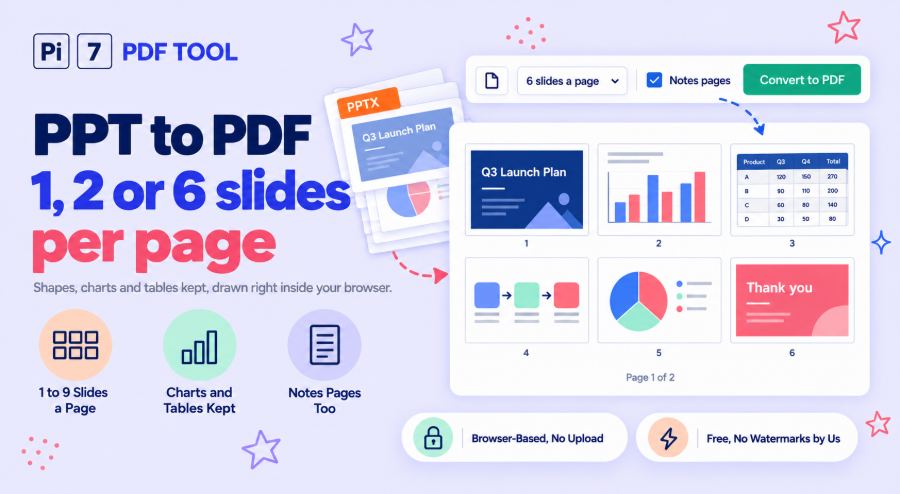
Drop a PowerPoint file above to turn it into a PDF in your browser, one slide per page or up to 9 on a page. Pi7 reads the slides and draws every shape, picture, chart and table itself, so the PDF looks like the deck and the text stays selectable. You see the pages before you download, and the file never leaves your device.
How to Convert PowerPoint to PDF Online
- Drop your PowerPoint file anywhere on this page, or click Select File to pick it. If the file has a password, type it when the page asks.
- Look at the preview. Type a range under Which slides if you only need some of them, and pick how many slides go on each page.
- Click Convert to PDF. The pages are drawn on your own device, usually in a few seconds.
- Click Download PDF on the result card. Rename it first if you like.
The pill under the preview shows how many pages you will get. A 40-slide deck printed 6 to a page shows "7 pages from 40 slides" before you convert. If you only want to look through the slides, open them in the PPT viewer instead.
What Stays the Same in the PDF
Each slide becomes a page of exactly the slide's size, so a widescreen deck gives widescreen pages and a 4:3 deck gives 4:3 pages. Text boxes, titles and bullet lists keep the margins, bullets and line spacing set in the file. Text that PowerPoint shrank to fit its box is shrunk the same way. Shapes keep their real outlines, from arrows and speech bubbles to stars and flowchart symbols, along with their fills, colour fades, outlines and shadows. Pictures keep their crops and rounded corners. Tables keep their column widths, joined cells and striped rows. Charts, 3D charts included, are drawn from the numbers saved in the file, and SmartArt comes from the drawing PowerPoint saved of it. Slide backgrounds, theme colours and the layout's own shapes all come through.
A PDF is a printout, so anything that only happens on screen is left out: animations, slide changes, sound and video. A video shows the still picture it was saved with. A pasted file, such as a spreadsheet, shows the preview picture PowerPoint keeps of it. One with no saved preview is left blank.
Multiple Slides Per Page: 2, 3, 4, 6 or 9 on One Page
1 slide gives you the deck as it is, one full-size page per slide. Pick it to send or print the slides themselves. The other choices make A4 handouts: 2, 4, 6 or 9 small slides on each page in reading order, each with a thin frame. 3 slides puts three slides down the left side with ruled lines beside each one for writing notes, the classic handout. Tick Notes pages to get one page per slide with the slide on the top half and your speaker notes under it, in plain text.
Which Slides Go Into the PDF?
All the visible slides, in order, unless you type a range. 1-5, 8, 12-20 works the same way as when you print, and 12- means from slide 12 to the end. Slides you hid in PowerPoint are left out, the same as PowerPoint's own export. A box to include them appears only when the file has some. The preview updates as you type, so you can check what you picked.
Why Do the Fonts Look Right?
Most PowerPoint files do not carry their fonts, so a converter has to draw the text with fonts of its own. This tool uses fonts with the same letter widths as the common ones. Carlito stands in for Calibri, Caladea for Cambria, Liberation Sans for Arial and Liberation Serif for Times New Roman. Same widths means the same line breaks and the same fit inside every box, which is what keeps a slide looking like the slide. When a file does carry its own fonts, the text is drawn in those. Hindi, Punjabi, Tamil, Bengali, Arabic, Hebrew, Thai, Chinese, Japanese and Korean text are drawn with fonts made for those scripts. Chinese and Japanese lines wrap between characters, the way those languages are written. A font the tool does not have is swapped for the closest of these. The text is there and readable, even if the letter shapes differ a little.
File Types This PowerPoint to PDF Converter Accepts
.pptx, .pptm and .ppsx files from PowerPoint 2007 or newer, plus .potx and .potm templates. A file saved by Google Slides, Keynote or LibreOffice as .pptx works the same way. Older .ppt files from PowerPoint 97 to 2003 are read too, with their pictures, shapes, tables and text styles. So are .odp files from LibreOffice Impress, including their custom shapes, colour fades, tables and charts. A few things in .ppt files are drawn in a simpler way: WordArt is set straight, and numbered lists show bullets.
A .pptx with a password opens too. The page asks for the password, and it stays in your browser. An older .ppt with a password has to be unlocked in PowerPoint first.
Your Slides Never Leave Your Device
Everything happens inside your browser tab, from reading the file to saving the PDF on your own device. Nothing is uploaded, and nothing is kept once you close the tab. A password you type to open a locked file stays in the tab as well. The Excel to PDF converter shares its drawing engine with this tool and works the same way, and so does the PDF to Excel converter.
Frequently Asked Questions
Will the PDF look exactly like PowerPoint's own export?
Very close. Text sizes, positions, colours, shapes, pictures, charts and tables are drawn from the same values PowerPoint uses. Unless the file carries its own fonts, the letter shapes come from matching fonts rather than the originals. So a word can look slightly different up close while the layout stays the same. Shadows, glows and reflections are drawn, but a shape tilted in 3D is drawn flat.
Can I get several slides on one page for printing?
Yes. Choose 2, 3, 4, 6 or 9 slides on each page and you get A4 handout pages. Pick 3 for the version with note-taking lines next to each slide.
Can I convert PPT to PDF with notes?
Yes. Tick Notes pages and each page shows the slide on top and your speaker notes under it. Without that box, notes are left out and the PDF holds the slides alone.
Is there a size limit, a watermark or a daily limit?
No watermark and no daily limit. There is no file size limit either, because the work happens on your device. A very long deck with hundreds of large photos takes longer and uses more memory. On a phone, convert a range of slides at a time.
Does the text stay selectable in the PDF?
Yes. The slides are drawn as real text and shapes, not as pictures, so you can select, search and copy the words. The file also comes out smaller than a PDF made of pictures. To make it smaller still, run it through the PDF compressor afterwards.