PDF to Excel Converter - Works on Scanned PDFs
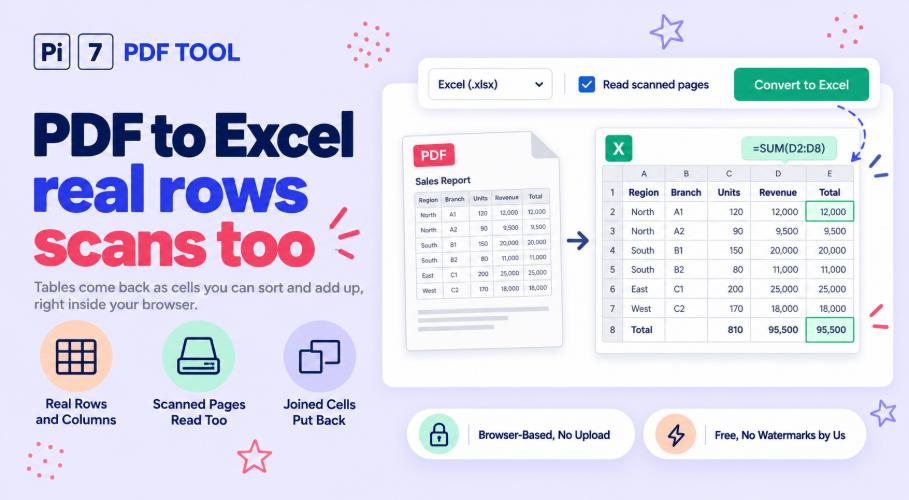
Drop a PDF above and get the whole page back as a spreadsheet, tables and all. Pi7 reads the page on your own device, works out where the cells are, and writes a real Excel file. Headings, paragraphs and pictures come across as well as the grids, and scanned pages are read too. You see the table on screen before you download anything, and the file never leaves your browser.
How to Convert PDF to Excel Online
- Drop your PDF anywhere on this page, or click Select File to pick it.
- Look at the preview. If the PDF holds more than one table, click the buttons to check each one.
- Everything on the page comes across on its own. Tick Extract only tables from the PDF if you want the grids and nothing else.
- Click Convert to Excel, then Download Excel file. Rename it first if you like.
The line under the preview tells you how many tables were found and how many rows they hold. So you know what you are getting before you spend time on it.
Does It Work on a Scanned PDF?
Yes. A scan is a photo of a page, so there is no text to copy out of it. The tool spots those pages, finds the printed lines of the table in the picture, then reads each cell one at a time and puts the words where they belong. Reading one cell at a time matters more than it sounds. Read a whole page in one go and the words drift into the wrong column. The printed table lines also get mistaken for letters like brackets.
On our own test scan of a ten row sales table, reading cell by cell came back with every cell right, at a reading confidence of 96 out of 100. Reading the same page in one piece scored 45 and returned nine words in total. Scans take a few seconds a page, so the tick box is there if you would rather skip them. If what you actually want is a searchable copy of the scan rather than a spreadsheet, our OCR tool is the better fit.
Tell the tool which languages the scan is written in, because it reads badly when the language is wrong. You can pick up to three at a time, which is what a bill with Hindi headings over English figures needs. English comes straight from this site. Any other language downloads once and your browser keeps it for next time.
What Comes Across Besides the Tables?
The whole document does, on one sheet, in the order the pages ran. You get the headings, the paragraphs, and the points of a list each on their own row. The tables come as real grids, and the pictures sit where they sat on the page. A page of writing with no table at all still converts, which a table finder on its own cannot do. If you would rather work on one page at a time, tick A separate sheet for each page and every page gets its own.
How it looked is kept too. Bold and italic come from the fonts stored in the file. Colours are read off the page itself, because the file does not tie a colour to each word in a way we can follow. So a navy heading arrives navy, and a shaded header row keeps its shade. Numbers stay numbers underneath all of it. If you only want the grids, tick Extract only tables from the PDF and the rest is left out.
What Happens to Joined Cells and Tables Split Across Pages?
Both are put back. When a heading sits across four columns, that cell comes into Excel as one joined cell, not as text squeezed into the first column with three empty ones beside it. The tool works this out from the lines on the page, because a joined cell is simply the smallest box the lines actually close.
A long table that runs over three pages comes back as one sheet, not three. The tool checks whether the heading row is repeated at the top of the next page and drops the repeat. So you do not get the column names again in the middle of your data. It also handles the other kind of split, where a wide table runs out of room sideways and the last columns continue on the next page. Those get joined back onto the same rows.
Excel or CSV, and What About Numbers and Dates?
Excel is the better choice for almost everything, because one file can hold every table on its own sheet, keep joined cells, and store real numbers and real dates. CSV is plain text and holds one table, which is handy when something else is going to read the file.
Numbers arrive as numbers you can add up. A total written 1,450.50 becomes 1450.5, and an accounting negative written (3,200.00) becomes -3200 rather than a piece of text with brackets. European style works too, so 1.234,56 is read as 1234.56. Percentages become real percentages. Dates are trickier, because 03/02 could be March the second or the third of February. The tool decides once for the whole column, by looking for any row where the first number is above twelve. If nothing in the column settles it, those cells stay as text rather than becoming the wrong date. A zero in front of a figure is part of the value, not decoration. So that cell stays exactly as the page showed it, with nothing converted. A part number like 007 stays 007, and a phone number keeps its leading zero.
Sometimes you want none of that. Tick Keep every value exactly as written and every cell arrives as the characters printed on the page. A total shown as (3,200.00) stays in brackets rather than turning into -3200. Use it when the sheet needs to match the paper, or when you are pasting the values somewhere else that does its own reading. The trade is that Excel treats those cells as words, so the columns will not add up.
Why Some PDFs Give a Cleaner Table Than Others
A PDF does not store a table. It stores letters at positions and lines at positions, and the table is something your eye puts together. That is why the same tool can be perfect on one file and unsure on another, and it is worth knowing which kind of file you have.
Best of all is a PDF that names its own cells inside the file. Only about one PDF in ten does this, and even then the naming is often wrong, so the tool checks it against the lines on the page before trusting it. Next best is a table with lines around the cells, which is the most common kind and comes out exact. Hardest is a table with no lines at all, where the columns have to be worked out from the gaps in the spacing. Those usually come out right, but the preview is worth a proper look. We measure all of this on a set of test files with known answers: the current score is 12 of 13 files perfect to the cell. The one that is not perfect is a file whose letters were saved without matching characters, which no reader can undo. The tool says so under the preview instead of quietly handing you misspelled cells.
Your PDF Never Leaves Your Device
There is no upload, and no server sees your file. The reading, the table finding and the spreadsheet writing all happen in your browser using your own processor. That is why a big file does not need a fast connection, and why the tool keeps working if your connection drops after the page has loaded. If the PDF has a password, you type it here and it is used on your device to open the file, never sent anywhere. Nothing is stored and nothing is logged, so there is nothing for us to delete afterwards.
Questions People Ask
Why did it find no table in my PDF? The tool looks for rows and columns. A page of paragraphs has none, so nothing comes back. It can also happen when a table has no lines and its columns sit very close together.
Can it do a hundred page PDF? Yes, and the work happens on your device, so the time depends on your computer rather than on our servers. Pages with normal text are quick. Scanned pages are the slow part at a few seconds each. If you only want the tables from a few pages of a long report, pull those pages out first with our page extractor and drop the short file here.
Why is one column split into two? This happens with tables that have no lines, where a wide gap inside a cell looks like the gap between columns. Check the preview, and if it looks wrong the underlying PDF is usually easier to fix at the source.
Does it keep colours, fonts and pictures? Yes. Bold and italic are read from the fonts inside the file, so they are exact. Colours are sampled from the page, so a navy heading stays navy and a shaded header row keeps its shade. Pictures are placed on the sheet where they sat on the page. A watermark sitting behind the words is left out on purpose, since that is the paper rather than the content.
What if I need to go the other way? Use our Excel to PDF converter, which fits every column onto one page instead of chopping a wide sheet into strips.