Password Protect PDF with AES-256 Encryption
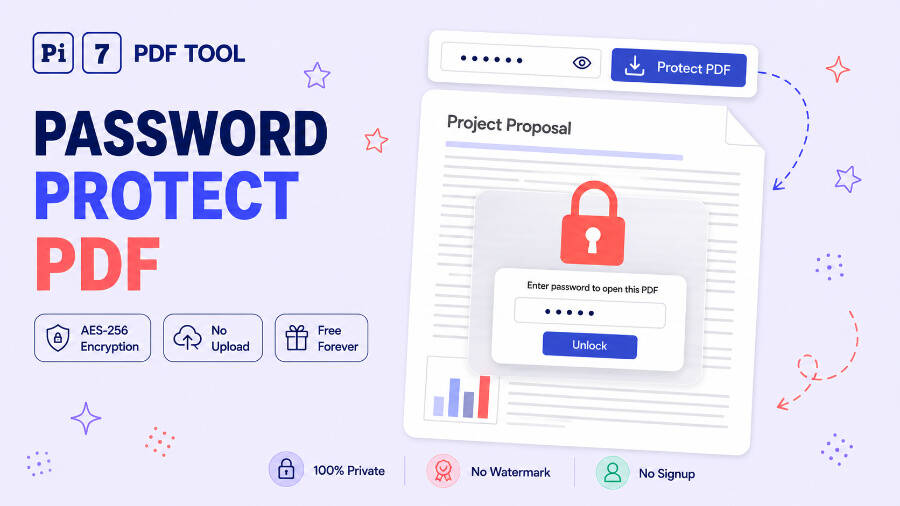
Drop a PDF above, type a password, and Pi7 locks it with AES-256 encryption inside your browser. The file and the password never leave your device, so there is no upload and no copy on anyone else's server. The protected PDF keeps its text selectable, and it downloads with no watermark and no signup.
How to Password Protect a PDF
- Drag your PDF onto the box above, or click Select PDF to pick it from your device.
- Type the password you want in the Password box. Use the eye icon to check it before you go on, because a typo here cannot be undone later.
- Click Protect PDF. The encryption runs on your own machine and finishes in well under a second for a typical document.
- Click Download Protected PDF on the result card. Anyone opening that file now has to type the password first.
Already have a locked PDF and want to change its password? Add it the same way. Pi7 notices the existing lock, asks for the current password, and replaces it with the new one in a single step.
What AES-256 Encryption Actually Protects
The password is not a flag that a reader chooses to respect. Every page, font and image in the file is genuinely encrypted with a 256-bit key. Without the password there is nothing readable inside the file at all. Open a protected PDF in a text editor and you will find noise where the words used to be.
Locking a file costs almost nothing in size. A 534KB test document came out at 537KB after AES-256 encryption, about half a percent larger, because every encrypted block carries a short random prefix. Nothing is re-compressed and nothing is flattened into pictures. We checked by extracting the text from the original and from the locked copy after unlocking it, and the two were byte for byte identical.
Open Password or Permissions Password?
PDF has two separate passwords and most tools only tell you about one. The open password is the one people mean by locking a file: without it the document will not open. That is the box on this page, and for most jobs it is the only one you need.
The owner password holds the right to change the printing and editing limits instead. Pi7 manages it for you, so there is no second box to fill in. With no limits set, your one password does both jobs. Switch a limit off and the tool locks it with a random owner password it then throws away. A shared password must not carry the key to the limits with it. To lift the limits later, open the file in our password remover with your normal password, then protect it again with printing and editing allowed.
Why Printing Limits Are Weaker Than the Password
This is worth being straight about. The print and edit flags are stored inside the file and mainstream readers obey them. Switching off printing really does grey out the print button in the readers most people use. But those flags are a request, not a lock. The page content is decrypted the moment the file opens, and software that ignores the flags can print anyway.
Treat the restrictions as a clear signal of intent to a cooperating reader, useful for keeping an exam paper or a draft from being casually reprinted. When the content genuinely must not reach someone, the open password is the control that does the work. You may notice this tool offers no tick box for copying or form filling. PDF has flags for those too, but so many readers ignore them that offering the boxes would be a false promise. The two options below do the same jobs by changing the file itself.
Stopping Copying and Form Filling for Real
To stop copying, tick Remove the text layer under Advanced options. That renders every page as a picture, so the file itself carries no text. We measured it on a three-page test file: 3,225 characters of extractable text before, and none at all afterwards, checked with two separate PDF libraries. Chrome is the exception worth planning around. Its viewer runs OCR on the page image and rebuilds selectable text from what it sees. Copying still works there, while Firefox, Acrobat and Preview give you nothing. That is the honest ceiling for any PDF, because whatever a person can read on screen can be read by software too.
Form filling has a cleaner answer than copying does. Tick Lock form fields and the current answers are stamped onto the page as ordinary content, then the fields themselves are deleted. Every reader respects that, because there is no form left to fill. If parts of a document should never be visible in the first place, remove them properly with the PDF redaction tool before you lock the file.
Choosing a Password That Holds Up
A PDF password is attacked offline. Whoever has the file can guess at it on their own hardware for as long as they like. There is no server to rate-limit them and no account to lock out. That changes what makes a good choice: length beats cleverness. A four-word phrase you can actually recall is far harder to break than a short password with a digit and a symbol bolted on.
The strength bar under the password box scores what you type on that basis. It weights length most heavily and calls out the handful of passwords that get tried first. One warning that has no workaround: a lost PDF password cannot be recovered. We never receive it, so there is nothing for us to reset. Write it down somewhere safe before you send the file on.
Nothing Is Uploaded to Pi7
Your PDF is encrypted inside your own browser tab, and your password is never transmitted anywhere. No server does this work, so there is no upload to wait for and no daily quota. There is also no stored copy that somebody would have to promise to delete afterwards. You can watch the network tab in your browser while you lock a file and see that nothing leaves the page.
That matters more here than on most tools. A document worth putting a password on is usually a contract, a payslip, a medical letter or an ID scan. Handing that to a stranger's server first is a strange way to start protecting it. The same applies in reverse when you need the lock taken off again, which our PDF password remover also does entirely on your device.
Frequently Asked Questions
Is a password protected PDF actually secure?
With a strong password, yes. AES-256 is the same cipher used to protect classified material, and there is no known shortcut through it. The weak point is never the maths. It is a short or guessable password, because an attacker holding the file can try candidates offline at high speed.
Can I remove the password later?
Yes, as long as you know it. Our remove PDF password tool unlocks the file in your browser and gives you back an ordinary PDF. If you only want to change the password, you can do that here instead by adding the locked file and entering the current password when asked.
Will the PDF still work on my phone?
Yes. AES-256 protected files open in current versions of every mainstream desktop and mobile PDF reader. Your phone asks for the password the same way a computer does. A few older programs and e-ink readers only understand the earlier AES-128 format. Switch to it under Advanced options if a recipient reports that the file will not open.
Can I stop people copying text from my PDF?
You can make it awkward rather than impossible. PDF has a no-copy flag, but several readers ignore it outright, which is why this tool does not offer it as a tick box. Tick Remove the text layer instead: it empties the file of text, which stops copying in Firefox, Acrobat and Preview. Chrome then reads the page image with OCR and rebuilds the text, so assume a determined reader gets there in the end.
Does encrypting change how the document looks?
No. Encryption wraps the content rather than rewriting it, so fonts, images, layout and page count all come through unchanged. Text stays selectable and searchable once the file is open. If you also need the file to be smaller, compress the PDF first and lock the result, because compressing an already encrypted file means unlocking it again.