Watermark PDF Online - Add Text or Image Watermark
Drop a PDF, pick a preset like DRAFT, or set your own text and color. Adjust opacity, rotation and placement. Free, browser-based, no watermark added by us.
Add a watermark to any PDF online for free with the Pi7 PDF Watermark tool. Drop in your PDF, pick a preset like DRAFT or CONFIDENTIAL, or type your own text and pick a color, opacity and rotation. You can also upload a logo image. Everything runs in your browser - no upload, no signup, no watermark from us.
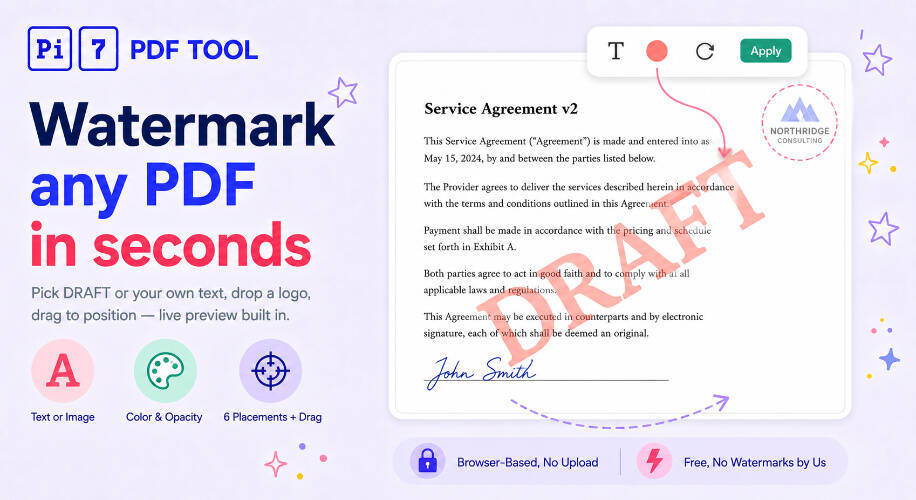
How to Add a Watermark to a PDF Online
- Drop your PDF. The first page renders for live preview.
- Pick a preset (DRAFT, CONFIDENTIAL, SAMPLE, COPY) or type your own text. Tweak font, color, opacity, rotation, and placement. Switch to Image type to use a logo instead.
- Click Apply & Download. The watermarked PDF downloads automatically.
Need to reduce the resulting file size? Try our PDF compressor. Want to remove text instead of marking it? Use our PDF redactor.
Text and Image Watermarks
Text watermarks are the classic - DRAFT, CONFIDENTIAL, SAMPLE, COPY. Type any phrase you want and pick a font (Helvetica, Times or Courier), color, size, opacity, and rotation. Toggle Outline for hollow letters (classic stamp look) or Behind text to blend the watermark with the page underneath.
Image watermarks are perfect for logos and branding. Switch the Type toggle to Image, drag and drop or browse to a PNG or JPG, and adjust the scale from 5% to 100% of the page width. The image keeps its quality at any size.
Picking Placement and Look
Six placement presets cover most cases:
- Diagonal - centered, tilted -45°. The classic DRAFT stamp.
- Tiled - repeats across the whole page in a grid. Hard to crop out.
- Center - one stamp dead center, no tilt.
- Header / Footer - small line at the top or bottom of each page.
- Corner - top-right, perfect for a small logo.
Adjust opacity (10-100%) to make the watermark subtle or bold. Rotation slider works on every placement so you can dial in exactly the angle you want.
When to Watermark a PDF
- Drafts and review copies - add DRAFT so reviewers know it's not final.
- Confidential documents - mark CONFIDENTIAL or "DO NOT DISTRIBUTE" on business or legal files before sharing.
- Sample PDFs - add SAMPLE or PREVIEW to evaluation copies of ebooks, reports, or design files.
- Branding - drop your company logo on contracts, proposals, or pitch decks.
- Copyright - add a "© 2026 Your Name" line to portfolios and creative work.
Your PDF Stays on Your Device
The watermark tool runs entirely in your browser. Your PDF is never uploaded to a server - it's read locally, the watermark is drawn with JavaScript, and you download the result directly. No account, no upload time even on a 200-page PDF, and no watermark added by us.
Frequently Asked Questions
How do I add a watermark to a PDF online?
Open the Pi7 PDF Watermark tool, drop in your PDF, pick a preset like DRAFT or type your own text, adjust opacity and placement, then click Apply & Download.
Can I use an image or logo as a watermark?
Yes. Switch the Type toggle to Image and upload a PNG or JPG. Adjust the scale, opacity, and rotation. The image is embedded into the PDF on every selected page.
Are my files uploaded to a server?
No. Your PDF stays on your device. The tool runs entirely in your browser.
Ready to watermark that PDF? Drop your file above and try it.