Text to PDF Converter - Free Online Editor, Any Font
Type or paste into the editor, style it like a document, click Make PDF, check the preview and download. Nothing is uploaded.
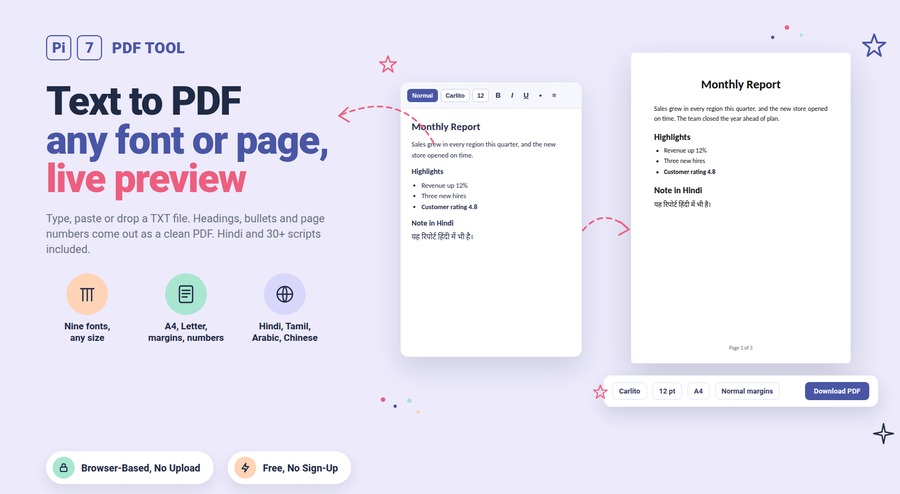
Type or paste your text into the editor above, or drop a TXT file on the page, style it, and click Make PDF to see every page before you download. Style it the way you would in a word processor: fonts, sizes, bold, colour, headings, lists and alignment. Then pick a page size, add page numbers and download. Everything happens in your browser, so your text is never uploaded.
How to Convert Text to PDF
- Type or paste into the editor, or click Upload .txt. You can also drop files anywhere on the page. Several files go into one PDF, each starting on a new page.
- Use the toolbar to style the text: paragraph style, font, size, bold, italic, underline, colour, bullet and numbered lists, indent and alignment. Select text first to change only that part. Change the font or size with nothing selected to set them for the whole document.
- Below the editor choose A4, Letter, Legal or A5, portrait or landscape, a margin width and line spacing. Add a header for every page if you want one. Page numbers are on by default and can be moved or switched off.
- Click Make PDF. The finished pages appear below. Check them, then click Download PDF. The file is named after your text file or the first line of the document.
The preview is the real PDF, not a drawing of it. What you see is exactly what you download, page breaks included. If you edit the text after building, an Update PDF button rebuilds it. Press Ctrl+Enter or the Page break button to start a new page wherever you like.
Paste From Word, Notes or a Web Page
Pasted text keeps what matters and drops the rest. Bold, italic, underline, colour, font, size, headings, lists and alignment come through. Hidden styles, scripts, pictures and page layout from the source are left behind, so the result is clean and the PDF matches the preview. A plain text file is read with a few simple marks as well. A line starting with # becomes a heading, lines starting with - or 1. become lists, words between two stars become bold, and a line of --- starts a new page. Text without any marks comes out exactly as typed.
Which Fonts and Languages Does It Support?
Nine fonts: Carlito and Liberation Sans for a clean look, Inter, three serif faces in Liberation Serif, Caladea, Merriweather and EB Garamond, Liberation Mono for code, and DejaVu Sans for symbols. You can mix them in one document. Every font is embedded in the PDF, so it looks the same on any device. Hindi, Tamil, Telugu, Bengali, Gujarati, Punjabi, Kannada, Malayalam, Odia, Sinhala, Thai, Arabic, Hebrew, Chinese, Japanese, Korean and more than a dozen other scripts are drawn with their own fonts and shaped correctly. Conjuncts join, Arabic letters connect and right-to-left text runs the right way. Emoji are drawn too.
Why Do TXT Files Look Wrong in Other Converters?
Two things usually go wrong. Long lines get cut off at the right edge, and text in anything but English turns into boxes. Here every line wraps inside the margin you chose, so nothing is lost. Each character is checked against the font. One that the chosen font lacks is drawn with a font that has it. Text files saved by old Windows programs in an 8-bit encoding are detected and read correctly. UTF-16 files with a byte order mark are read too. Tabs become four spaces, and a form feed character starts a new page.
Long Documents and Code
Very long documents are fine. The preview shows the first 40 pages and the download has all of them. A 120-paragraph document builds in under a second. For code or log files, pick Liberation Mono and the indentation stays as it was. Headings are never left alone at the bottom of a page, and lists keep their numbering across pages.
Your Text Never Leaves Your Browser
The PDF is built on your own device, from fonts served by this site. Nothing you type, paste or upload is sent anywhere. There is no account, no server copy and nothing to delete afterwards. That matters for the text people most often turn into PDFs: notes, letters, assignments, resumes, contracts and chat exports. If you need the finished file locked, the PDF password tool adds a password the same way, with nothing uploaded.
Frequently Asked Questions
Can I convert several TXT files at once?
Yes. Select or drop several files and they are placed in one PDF, each starting on a new page, in the order you picked them. To get separate PDFs, convert them one at a time with Clear in between.
Can I change the font for the whole document?
Yes. With nothing selected, pick a font or size in the toolbar and it applies to all text that has no font of its own. Select a word or a paragraph first to change only that part. Your page, margin and spacing choices are remembered for the next visit.
Does it keep my line breaks and spacing?
Yes. Each line of a text file starts a new paragraph in the PDF, blank lines stay blank, and leading spaces are kept. Only lines wider than the page wrap onto the next line.
How do I get the text back out of a PDF?
Use our PDF to text tool. It reads the paragraphs back out of any PDF, including scanned ones, also in your browser.