PDF to Text - Extract Text From Any PDF, Scanned Too
Copy the text out of a PDF with its paragraphs intact. Runs in your browser, nothing is uploaded.
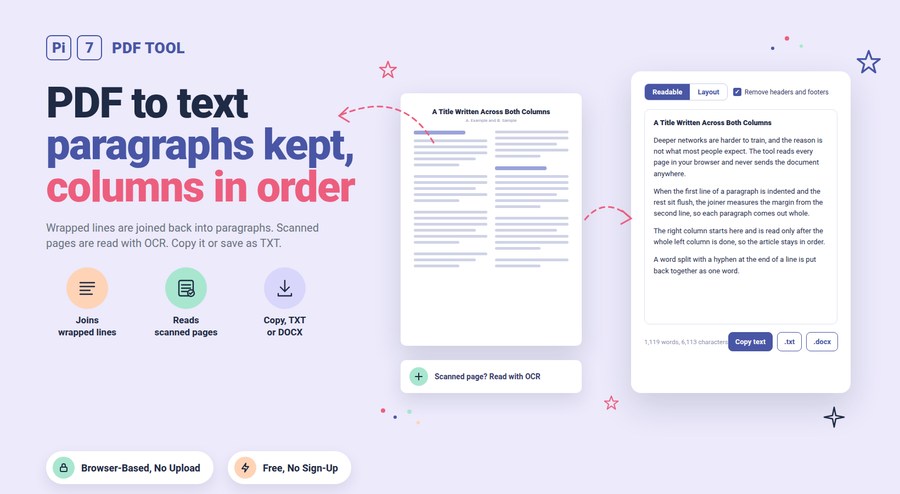
Drop a PDF above and its text appears in seconds, with wrapped lines joined back into paragraphs and columns read in the right order. Pages that are only pictures of text, like scans and phone photos, are read with OCR in more than 100 languages. Copy the result, or save it as a TXT or DOCX file. The whole job runs in your browser, so the PDF is never uploaded.
How to Extract Text From a PDF
- Click Select PDF or drop one or more PDF files on the page. A password-locked file asks for its password first.
- The text shows up page by page in the box below the file name. Scanned pages are read with OCR right after, and the box fills in as each one finishes.
- Keep Readable for paragraphs, or switch to Layout when you want every line where it sits on the page. Type a page range such as 2-5 if you only need part of the file.
- Press Copy text, or save the result with Download .txt or Download .docx. With several files, a ZIP of all the text files appears at the bottom.
The box is a normal text area, so you can fix a word or cut a section before you copy. Each file shows its word and character count under the text. The PDF word counter gives the same numbers for a page range without extracting anything.
Why Does Copied PDF Text Break Into Short Lines?
A PDF stores each printed line on its own, with no idea where a paragraph starts or ends. Copying from a viewer gives you those lines one under the other. Every sentence breaks at the edge of the page, and you end up deleting line breaks by hand. This tool looks at where each line sits and how long it is. Lines that run to the same right edge at a steady spacing are one paragraph and are joined with a space. A line that stops short, a blank gap, a bullet or a bigger font starts a new one. A word split with a hyphen at the end of a line is put back together.
Two-column pages get the same care. The tool finds the white gap running down the page. It reads the left column to its end before it starts the right one. A research paper or newsletter comes out as sentences instead of two half-sentences glued together. A title written across both columns is kept above them. Running headers, footers and page numbers that repeat on most pages are left out, and you can switch that off if you want them.
Can It Extract Text From a Scanned PDF?
Yes. Each page is checked for a real text layer first. A page without one is drawn at a high resolution and read inside your browser. The reader is the same OCR engine as our OCR PDF tool. The reader is a few megabytes, downloads once and is kept by your browser after that. A tilted phone scan is straightened before it is read, and a page scanned sideways or upside down is turned the right way up.
English is the default language. When a scanned page is found, a language row appears above the text. Add up to three languages for a mixed document, such as Hindi and English, and press Read again. Pages that already carry text are never sent through OCR. A half-digital, half-scanned file keeps its digital pages exact and only spends time on the scanned ones. OCR is very good on a clean scan, but check names and numbers before you rely on them.
Readable or Layout: Which One Do You Need?
Readable is for prose: letters, reports, articles, books and anything you plan to paste into a document, an email or a chat. One paragraph per line, columns in order, nothing else. Layout keeps every line where it sits and pads the gaps with spaces, in a fixed-width font. The columns of an invoice, a bank statement or a form line up the way they do on the page. Switching between the two is instant, because the page has already been read. In Readable mode, a block that is clearly a table or a form is left line by line rather than joined into a false paragraph.
Does It Work on PDFs That Block Copying?
Usually, yes. Some PDFs carry a setting that tells viewers not to allow copying or printing. The text is still inside the file, and this tool reads the file directly rather than going through a viewer, so the text comes out. A PDF that needs a password to open is different. You are asked for that password, and the file is unlocked in your browser without being sent anywhere. Only use this on documents you are allowed to copy from.
Your PDF Never Leaves Your Browser
Reading the pages, joining the lines and running OCR all happen inside your browser tab. There is no upload, no server copy and no account. The reader engine and the English OCR data are served from this site, not from a third party. Close the tab and nothing is left behind. That matters for the files people most often need text from: contracts, bank statements, medical letters, ID documents and school records. If the PDF should stay locked after you are done, the PDF password tool adds one in the same way, with nothing uploaded.
Frequently Asked Questions
Is there a page or size limit?
No. Digital text comes out at hundreds of pages in a few seconds. Scanned pages take longer, a few seconds each, and the tool reads up to four at a time. A Cancel button sits next to the progress while OCR runs.
Does it keep Hindi, Tamil, Arabic and other scripts?
Digital text comes out in whatever script the PDF holds, as long as the file was made with proper text and not pictures. For scanned pages, add the language in the row above the text and the OCR reader uses it.
Why are some words missing or stuck together?
A few PDFs are made with fonts that have no space character, or with letters placed one by one. The tool measures the gaps between letters and puts the spaces back, so this is rare. If a word still runs together, switch to Layout to see it as printed. You can also run the page through the OCR PDF tool, which reads the picture of the page instead.
What is the difference from PDF to Word?
This tool gives you plain text: the words, their paragraphs and their order, nothing else. Our PDF to Word converter rebuilds the fonts, pictures and layout as an editable document. Use text when you want to paste, search, quote or feed the words to another program.