EPUB to PDF Converter - Free Ebook to PDF Online
Convert any EPUB ebook to a clean, printable PDF in your browser. Pick page size, font, theme, and margins, then download in seconds - free, no signup, no upload, no watermark.
PDF Settings
Layout
Style
Typography
Options
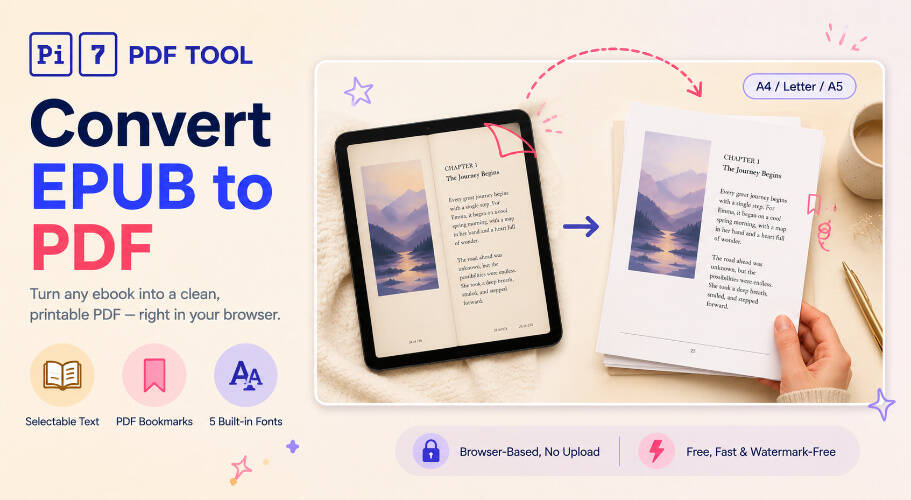
Convert EPUB to PDF online for free with the Pi7 EPUB to PDF Converter. Drop in any EPUB ebook, pick a page size, font, and reading theme, then download a clean PDF in seconds. Everything runs in your browser, nothing is uploaded, and the export keeps the cover, chapter structure, and table of contents from the original EPUB.
EPUB is a great format for reading on a phone or e-reader, but PDF is what you need for printing, annotating in a reader app, attaching to email, or sharing with someone whose device does not speak EPUB. We built this tool because every other EPUB-to-PDF option either uploads your file to a third-party server, locks the page-size or font choice behind a paywall, or strips the cover and bookmarks on the way out.
How to Convert EPUB to PDF Online
Three steps from EPUB to a finished PDF:
- Upload your EPUB : Drag and drop or click to select. Pi7 reads the cover, title, author, and chapter list right inside your tab.
- Pick layout, font, and theme : Choose a page size (A4, Letter, Legal, A5, A6, or the EPUB's original viewport), portrait or landscape, narrow/normal/wide margins, one of five fonts, and a white, sepia, cream, or dark reading theme. Toggle bookmarks, page numbers, and cover-as-first-page.
- Click Convert to PDF : Pi7 lays out every chapter, builds PDF bookmarks from the EPUB table of contents, and downloads a single PDF. Open it in any reader, print it, or share it.
Want to keep tweaking after you download? Drop the result into our PDF contrast editor to brighten dark-theme exports, or run it through our page number tool if you skipped the built-in numbering.
Choosing the Right Output Mode
Three output modes cover every EPUB shape we have tested across 100+ real-world ebooks:
- Image + selectable text overlay (default) : Renders every chapter to a high-quality JPEG and lays an invisible text layer on top, so the PDF looks identical to the EPUB but stays searchable, selectable, and copy-friendly. The right pick for most ebooks - novels, illustrated books, magazines, and fixed-layout EPUBs.
- Image only : Skips the text overlay. Smaller file, but no text selection. Use it for image-heavy EPUBs where you only need the visuals.
- Native text + images : Lays out the text directly with embedded fonts and inline images. The smallest, sharpest, fully editable mode, and the right one for clean reflowable EPUBs (novels, essays, papers). Skips complex CSS, so heavily styled fixed-layout EPUBs can lose their layout.
Not sure which fits? Start with the default. If you want the smallest file and an editable PDF and your EPUB is plain prose, switch to native text. The tool also auto-detects fixed-layout EPUBs and recommends image+overlay with the Original page size for pixel-perfect fidelity.
Pick Page Size, Font, and Theme
The settings that matter most for output quality:
- Page size : A4 and Letter are the safe defaults for printing. A5 and A6 produce paperback-style booklets that print 2-up nicely on A4. Legal works for wide reflow. Original keeps the EPUB's intended viewport - best for fixed-layout EPUBs.
- Margins : Normal works for most books. Pick wide for textbooks where you want side-room for handwritten notes, or narrow for shorter print runs to save paper.
- Font : Five options shipped locally so the export looks the same on every device - Merriweather for book-style serif, EB Garamond for literary novels, Inter for modern sans, plus Georgia and Helvetica as system-safe fallbacks. Native-text mode embeds the font into the PDF as a subset.
- Theme : White is the printable default. Sepia and cream reduce eye strain on screen. Dark mimics night-mode reading apps - great for tablet reading, not ideal for printing.
- Page numbers and bookmarks : Bottom-center, bottom-left, bottom-right, or off. Bookmarks come straight from the EPUB's TOC, so a 30-chapter novel still has a clickable index in any PDF reader.
When to Convert EPUB to PDF
EPUB is fluid; PDF is fixed. Common reasons people convert EPUB to PDF:
- Printing : A printer needs an exact page size and margins. PDF locks both in.
- Annotating in PDF apps : Almost every desktop and tablet annotator handles PDF natively but not EPUB.
- Email and sharing : Recipients always know how to open a PDF. Some still ask "what is an EPUB?".
- Court filings, university submissions, work uploads : Most portals only accept PDF.
- Long-form Kindle reading : Send-to-Kindle accepts PDF directly; EPUB needs conversion or a third-party app.
- Archiving : PDF/A is a long-term archival format. EPUB readers come and go.
- E-ink reader compatibility : Older Kobo, Sony, and Onyx Boox readers are picky about EPUB versions but render PDFs reliably.
EPUB to PDF for Kindle, Print, and Long-Distance Reading
A few setting recipes from our testing:
- Kindle send-to-PDF : Letter, normal margins, Merriweather 12pt, white theme, page numbers on, bookmarks on. Email the resulting PDF to your @kindle.com address and it lands in your library.
- Home printer (single-sided) : A4, normal margins, Georgia 12pt, white theme, page numbers bottom-center, "each chapter starts on a new page" enabled.
- Booklet print (2-up A5 on A4) : A5, narrow margins, EB Garamond 11pt. Prints two booklet pages per A4 sheet at the printer.
- Tablet night reading : A6 portrait, narrow margins, Inter 14pt, dark theme, page numbers off. Reads like a stripped-down ebook reader.
- Annotated study copy : A4, wide margins, Merriweather 13pt, cream theme, bookmarks on. Wide margins leave room for hand-written notes.
Browser-Side Conversion - Your Ebooks Stay on Your Device
Your privacy matters more to us than anything else. We do not upload your EPUB. We do not see it. We do not store it. Every file you drop in is unzipped and parsed locally by JavaScript, laid out chapter-by-chapter inside a sandboxed iframe in your tab, and assembled into a PDF right there. The bytes never travel to a server.
Open the page, add your EPUB, pick your settings, download the PDF, close the tab - the session is gone. There is no email signup, no copy of your book on a server somewhere, and no queued backup feeding into model training.
The practical knock-on benefits: it is fast (no upload time even on a 100 MB illustrated EPUB), there is no rate limit because there is no shared backend, and there is no watermark on the PDF because there is no premium tier to upsell into.
Why Choose Pi7
- Free forever : No subscriptions, no hidden limits, no premium tier.
- Unlimited use : Convert as many EPUBs as you want, with no chapter or page cap.
- No watermarks : The exported PDF stays clean and professional.
- Five embedded fonts : Merriweather, EB Garamond, Inter, Georgia, and Helvetica - shipped locally so output is identical on every device.
- Selectable text + bookmarks : The default mode produces a searchable PDF with a clickable chapter index from the EPUB TOC.
- Fixed-layout aware : Auto-detects FXL EPUBs and recommends pixel-perfect settings.
- Works everywhere : Runs in Chrome, Safari, Firefox, and Edge on Windows, macOS, Linux, Android, and iOS.
Need to Go the Other Way? PDF to EPUB
Have a stack of PDFs and want a single ebook instead? The reverse tool is right here on Pi7: PDF to EPUB converter. Drop in one PDF or twenty, sort and rename the chapters, and download a clean EPUB ebook with a navigable table of contents - same browser-only privacy story, no upload, no signup, no watermark.
Ready to turn that EPUB into a printable PDF? Drop your file above, pick a page size and theme, and click Convert to PDF.